

Best Black and Dark Streaming Overlays for Professional Streams
Dark overlays dominate professional streaming for good reason. They reduce visual fatigue, create cohesive branding, and let your content shine without competing for attention. This tutorial walks you through selecting and installing the best black and dark overlays for your channel.
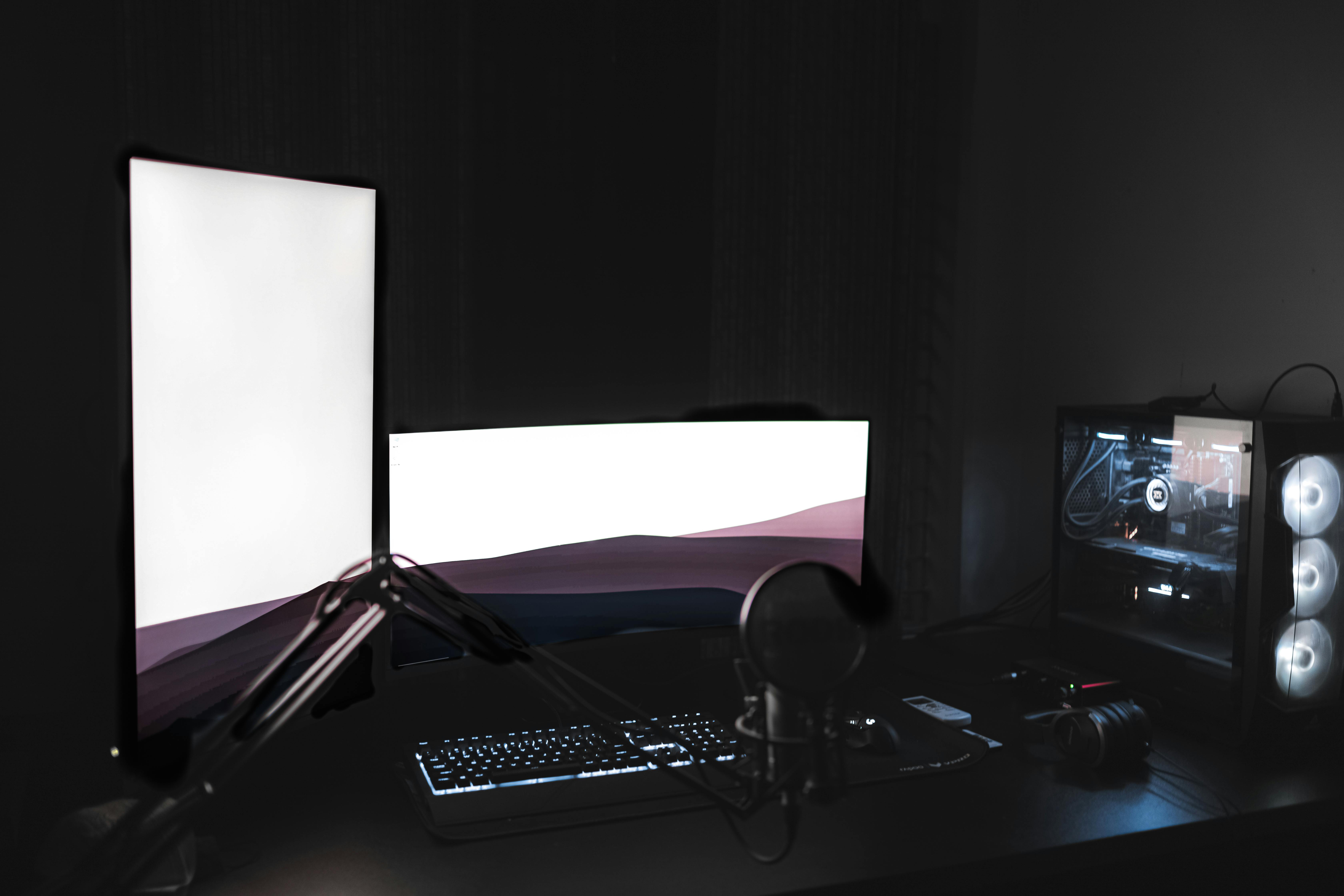
Why Dark Overlays Work for Streaming
Black and dark overlays offer practical advantages that lighter themes cannot match. Viewers watching streams for extended periods experience less eye strain with darker interfaces. Dark backgrounds also provide superior contrast for text elements, making chat boxes and alerts more readable.
Professional streamers choose dark themes because they maintain consistency across different games and content types. A dark overlay works equally well whether you stream bright games or atmospheric titles, creating reliable visual branding your audience recognizes instantly.
Step 1: Identify Your Streaming Style
Before selecting an overlay, determine what atmosphere matches your content. Competitive gamers benefit from minimal dark overlays that prioritize gameplay visibility. Creative streamers may prefer ornate dark themes with distinctive visual elements.
Consider your typical stream duration. If you broadcast for multiple hours, prioritize overlays with subtle animations that remain engaging without becoming distracting. Bold motion graphics work better for shorter, high-energy sessions.
Step 2: Choose the Right Dark Overlay
The Black Mode Stream Overlay delivers a sleek, professional aesthetic with dark tones that blend subtlety and impact. This overlay includes vertical dual-output support for multistreaming platforms, making it versatile for creators building audiences across multiple channels.
For streamers wanting luxury aesthetics, the Premium Stream Overlay combines dark backgrounds with golden accents. The elegant theme maintains professionalism while adding distinctive visual flair that separates your channel from competitors.
The Orbit Stream Overlay presents a unique approach with dark backgrounds featuring glowing celestial elements. This option suits streamers creating atmospheric content or building sci-fi themed channels.

Step 3: Verify Technical Compatibility
Confirm your chosen overlay supports your streaming software. All premium dark overlays from byKron work with both Streamlabs and OBS Studio, ensuring compatibility regardless of your platform preference.
Check the overlay specifications for resolution support. Standard overlays provide 16:9 webcam frames, matching most modern streaming setups. If you use vertical streaming for platforms like TikTok or Instagram, verify the overlay includes vertical dual-output support.
Step 4: Install Your Dark Overlay
Download your overlay files to a dedicated folder on your computer. Organizing overlay assets in one location prevents missing files and simplifies future updates.
Open OBS Studio or Streamlabs and create a new scene collection for your dark overlay. This preserves your existing setup while allowing experimentation with the new theme.
Import the one-click setup file included with premium overlays. This automated process configures all elements correctly, saving hours of manual positioning and adjustment.
Step 5: Customize Overlay Elements
Position your webcam frame within the provided template. Most dark overlays include precisely sized frames that complement the overall design without requiring adjustment.
Configure animated alerts by linking them to your streaming platform's alert system. Premium overlays include 12 animated alerts with sound effects, covering follows, subscriptions, donations, and other engagement events.
Set up your animated screens for stream transitions. Configure your starting screen, BRB (be right back) screen, and ending screen to maintain consistent dark aesthetics throughout your broadcast.
Step 6: Test Before Broadcasting
Run a private test stream to verify all overlay elements function correctly. Check that animations trigger properly, text remains readable, and the overall composition balances visual interest with content visibility.
Record a test session and review the footage. What looks good in preview mode sometimes appears different in actual recordings. Adjust opacity, positioning, or scaling based on recorded results.
Test your overlay with different game types. Ensure dark overlays maintain visibility across bright games, dark atmospheric titles, and everything in between.
Step 7: Optimize for Performance
Dark overlays typically require fewer system resources than complex light themes, but optimization remains important. Disable unused animated elements to reduce CPU load during streaming.
Configure stinger transitions to activate only when needed. Animated transitions create professional scene changes but consume resources when active continuously.
Monitor your encoding performance after installing the overlay. If you experience frame drops, reduce animation complexity or lower overlay opacity to improve streaming stability.
Common Mistakes to Avoid
New streamers often select dark overlays that obscure too much screen space. Choose minimal designs that enhance rather than dominate your content. Your gameplay or creative work should remain the primary focus.
Avoid mixing overlay styles from different sources. Inconsistent design languages create unprofessional appearances that distract viewers. Stick with complete overlay packages designed to work together cohesively.
Do not neglect contrast ratios between your overlay and stream content. Test your dark overlay against various backgrounds to ensure text and important elements remain visible under all conditions.
Advanced Dark Overlay Techniques
Create scene variations for different stream segments. Use your full dark overlay for main content, then switch to minimal versions during intense gameplay moments requiring maximum visibility.
Implement conditional visibility for overlay elements. Configure certain components to appear only when specific events occur, maintaining clean visuals during regular streaming while highlighting important moments.
Coordinate your dark overlay with your chat bot themes and panels. Consistent dark aesthetics across all stream elements reinforce professional branding and improve viewer recognition.
Frequently Asked Questions
Do dark overlays work with all types of games?
Dark overlays function effectively across most game genres. They provide excellent contrast for bright, colorful games while maintaining cohesion with darker, atmospheric titles. The key is selecting overlays with adjustable opacity, allowing you to modify intensity based on specific content needs without changing your entire setup.
How do I prevent my dark overlay from looking too busy?
Choose overlays with clean lines and purposeful design elements rather than excessive decoration. Disable animated components during gameplay-focused segments, reserving animations for transitions and special events. Position overlay elements in screen corners and edges, keeping the central viewing area clear for your primary content.
Can I use dark overlays for vertical streaming?
Premium dark overlays from byKron include vertical dual-output support, making them suitable for platforms like TikTok and Instagram. This feature allows simultaneous streaming to horizontal and vertical platforms without creating separate overlay setups. Verify vertical support specifications before purchasing to ensure compatibility with your multistreaming strategy.
Maintaining Your Dark Overlay Setup
Schedule regular reviews of your overlay performance. Viewer preferences and platform trends evolve, requiring periodic adjustments to maintain contemporary aesthetics while preserving your established branding.
Back up your overlay configurations regularly. Save your OBS or Streamlabs scenes to external storage, ensuring you can restore your setup quickly if technical issues occur.
Monitor viewer feedback about your overlay choices. While you should maintain consistent branding, audience input provides valuable insights about readability, distraction levels, and overall effectiveness.
Conclusion
Dark streaming overlays offer professional aesthetics that enhance viewer comfort while maintaining visual consistency. By following this step-by-step process, you create polished stream presentations that reflect your brand without overwhelming your content. Select overlays that match your streaming style, install them correctly, and optimize performance for the best results.
Professional overlays from byKron provide the quality and features necessary for competitive streaming in 2026, combining stunning dark aesthetics with practical functionality that supports your channel growth.
Keep learning
Learn more about how to improve your stream.


